Designing the face of the operating system, Home.
Home is the main OS focal point for the Magic Leap 2 device. It’s the first thing new users see, where they return to repeatedly to launch apps, view device status, and access quick controls. It moves with users as they traverse one or more rooms, adjusts to their sitting or standing height, adapts to one or more available apps, uses z-depth to enhance user focus, and can be controlled via multiple input systems.
Magic Leap is a mixed reality platform, and customer use cases require users to move freely in all types of environments that are often crowded and/or populated with dangerous equipment. Home needed to behave in ways that didn’t put users at risk as they traversed their physical world.
Purpose: lobby, launch & quit apps, device status, quick controls
Conditions: easily available (a safe place to retreat to), move with the user across rooms & headpose sessions, quick in-and-out, and works in crowded environments
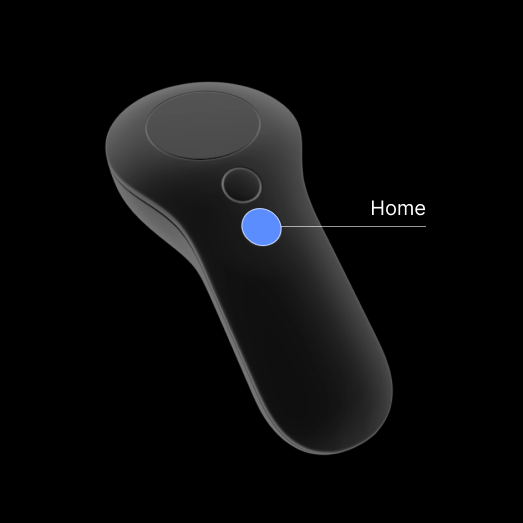
Inputs: controller with dedicated Home button, voice, hand gestures for near and far-field positioning, eye gaze + gestures, and external keyboard and mouse/trackpad
Historical Home
When I became the design RI for the Magic Leap core OS, Home (previously known as Launcher) was a well-crafted experience, but it had a few issues. The original Launcher was for a consumer device, and it was assumed that users were somewhat stationary. It was much like the launchers found on today’s video see-through devices like Apple Vision Pro and Android XR.
Home utilized a world-relative behavior that required users to frequently summon Home as they traversed their space, could only be interacted with using the Controller, App icons were costly utilizing over 50% of the processor to render, integrated device settings, and it didn’t showcase well under extreme cases where end users may only have 1 - 3 apps and developers have >100 apps.
The controller button was overloaded with multiple functionalities, resulting in the Launcher appearing only after a long hold. Additionally, user testing was limited to controlled environments. However, we did have extensive ergonomic testing across populations, genders, and body types to help inform upcoming decisions. I should also note that Home was the first OS platform feature to be built for the ML2, and as such, it needed to answer questions that would affect the rest of the Core OS.
First iteration of Home
Priority 1 was to ensure users easily knew how to access Home anywhere, anytime. The only input method this early in the platform development was the Controller. Working with hardware and industrial design, we made sure to dedicate a single button to Home that 3rd party developers couldn’t override. This was an easy case to make as user frustration from ML1 button overload was well documented.
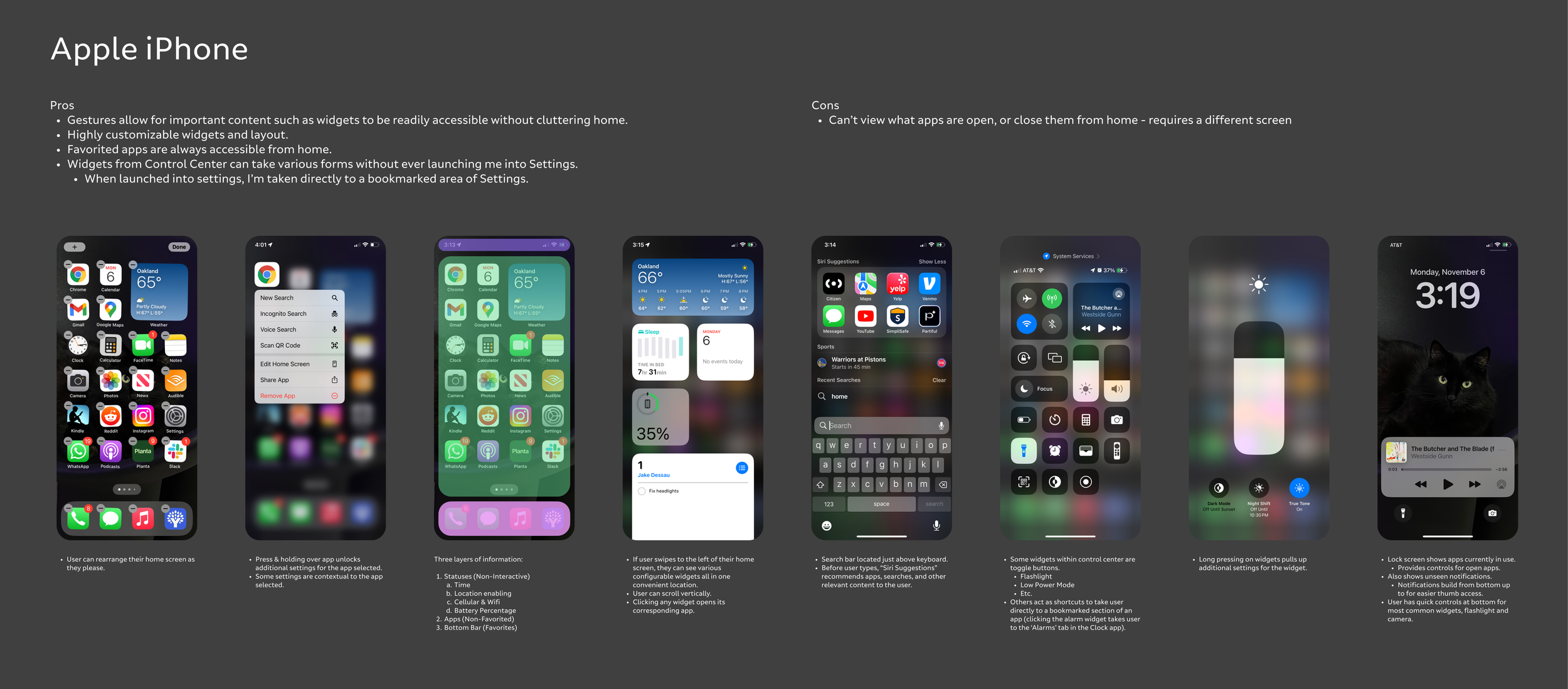
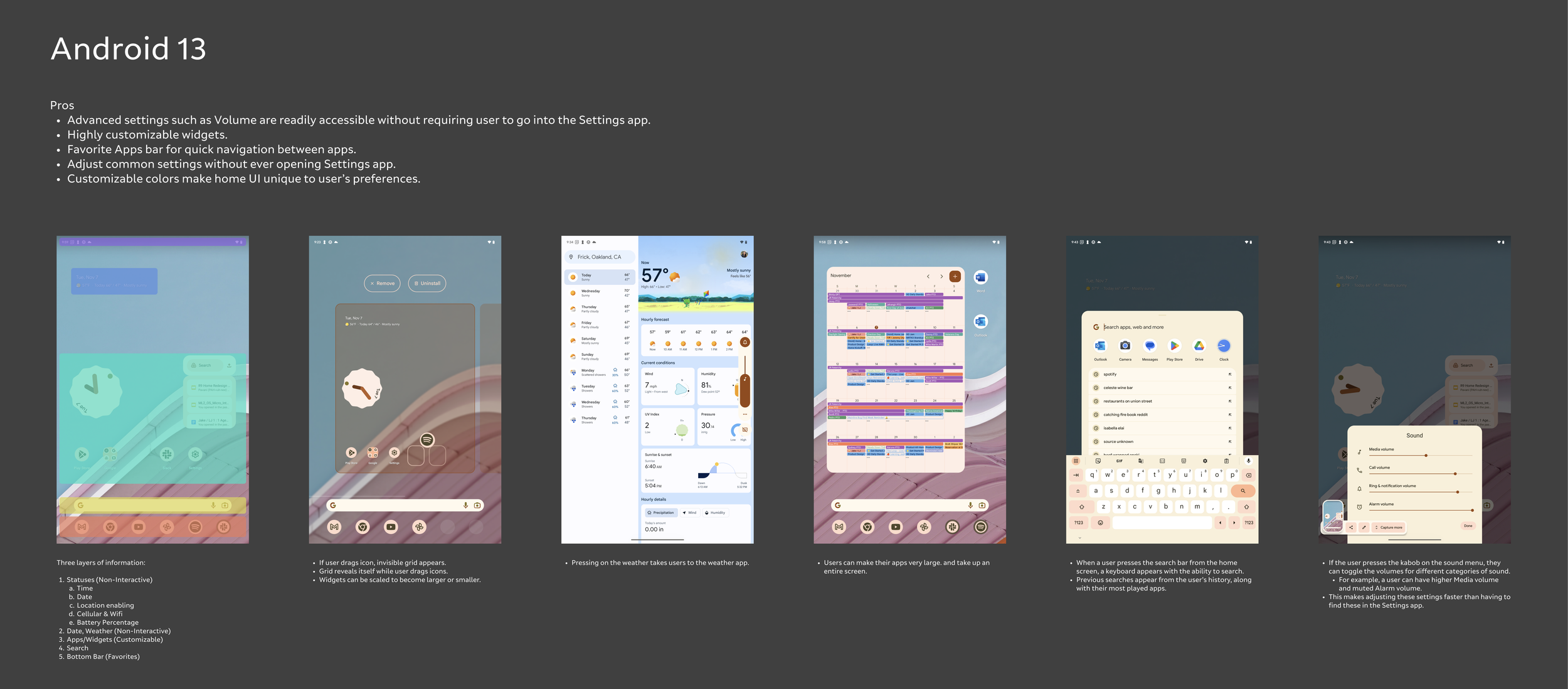
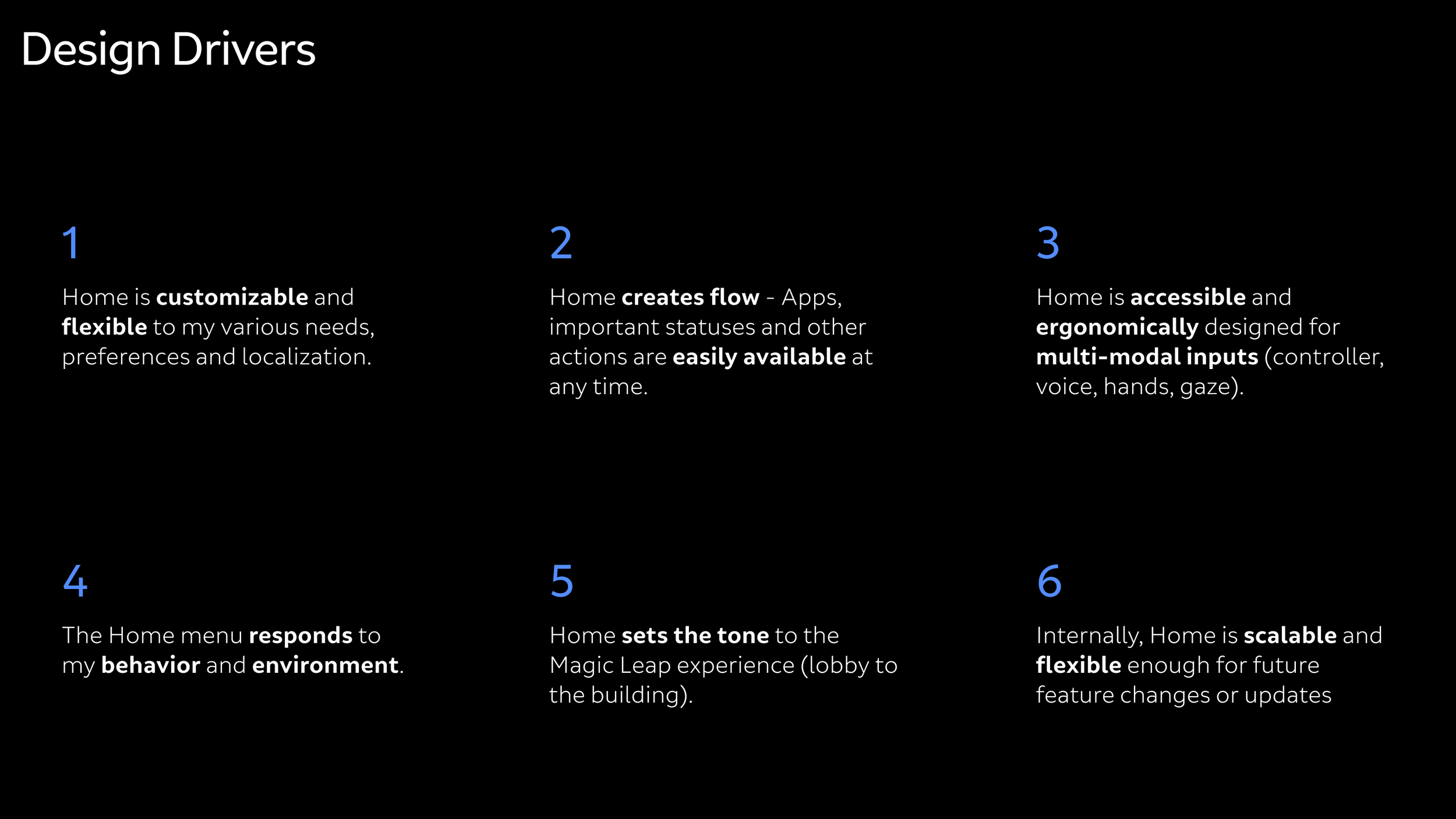
I began reading all the historical documentation regarding the design and testing of ML1 Home. There were four years of work that went into the previous Home, and I wanted to understand what decisions were made, and why. I then researched comparable home experiences from across flat-screen and XR (iOS, OSX, Android, Hololens, Oculus, Windows, etc.), and worked with the Product team to gather and formulate new “essentials” for Home:
Efficiency in launching apps, adjusting quick controls, and at-a-glance device status
60601-B medical compliance
1 to 12 apps
Quick controls
Multi-user devices
Multi-modal inputs: low priority as ML2 had no voice or hand tracking at the time
Efficient with little effect on processor or battery
No app management (install or delete). Apps are generally controlled through MDM.
Run on our native Lumin platform (moved to Unity at a later date)
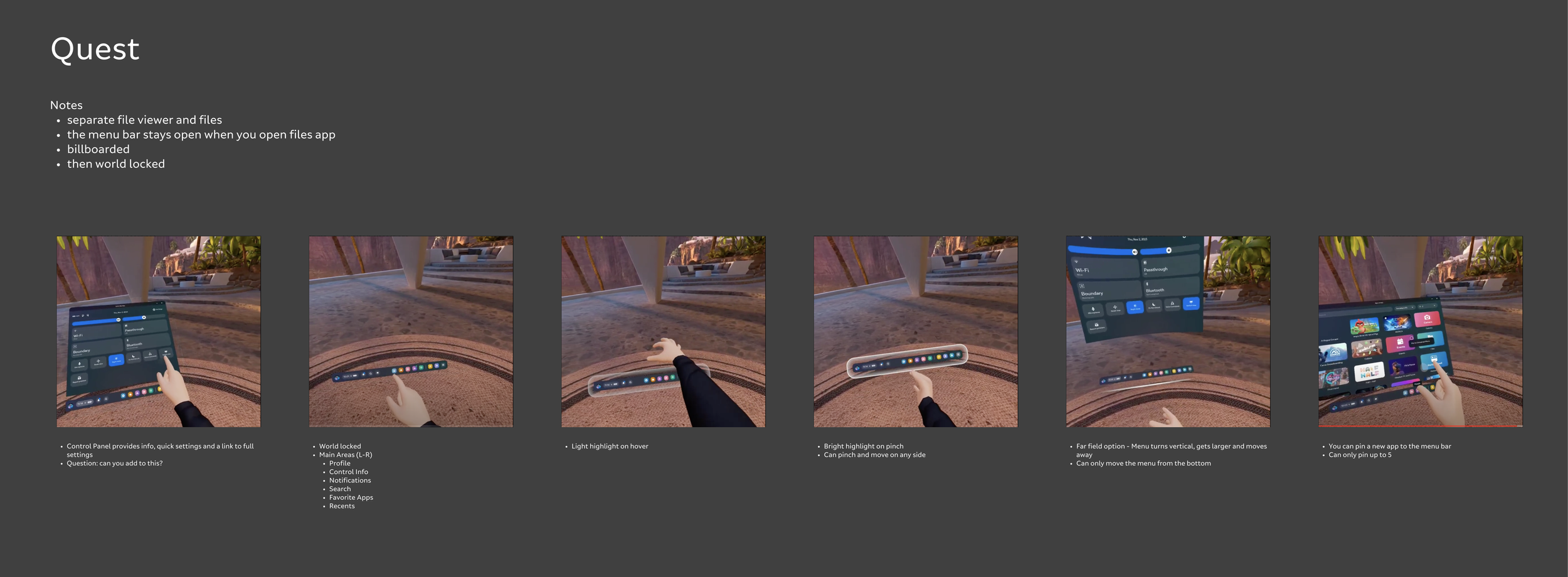
Home is a quick-access UI system where users spawn Home, launch an app or check WiFi status, then exit Home to enter an application. It can be accessed by users anywhere and at any time. It needed to be attached to the user position because the user may traverse across multiple rooms between Home spawning. It needed to allow users to move between sitting and standing, traverse across multiple rooms between accessing, and switch between Controller, gesture, or voice inputs.
Home essentials
Dedicated Controller button and hand gesture for easy access
Not reliant on environmental coordinates
Content behaviors based on user position
Efficiency in launching apps, adjusting quick controls and at-a-glance device status
Scalable from one-to-many apps
Multi-user devices
Multi-modal inputs
Compute efficient
Limited app management (no install, delete or favorites)
Run on our native Lumin platform (later moved to Unity)
60601-b medical compliant
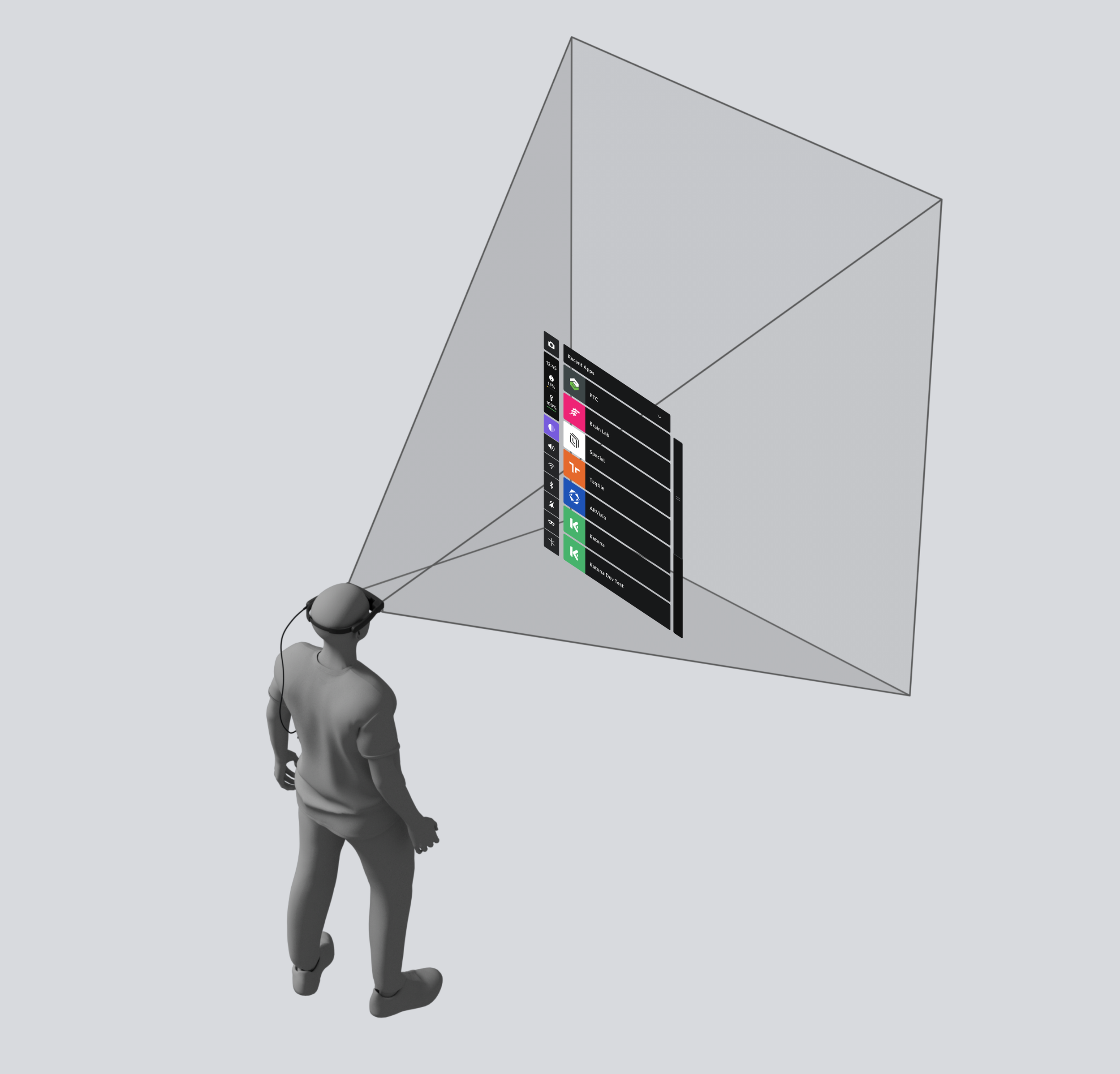
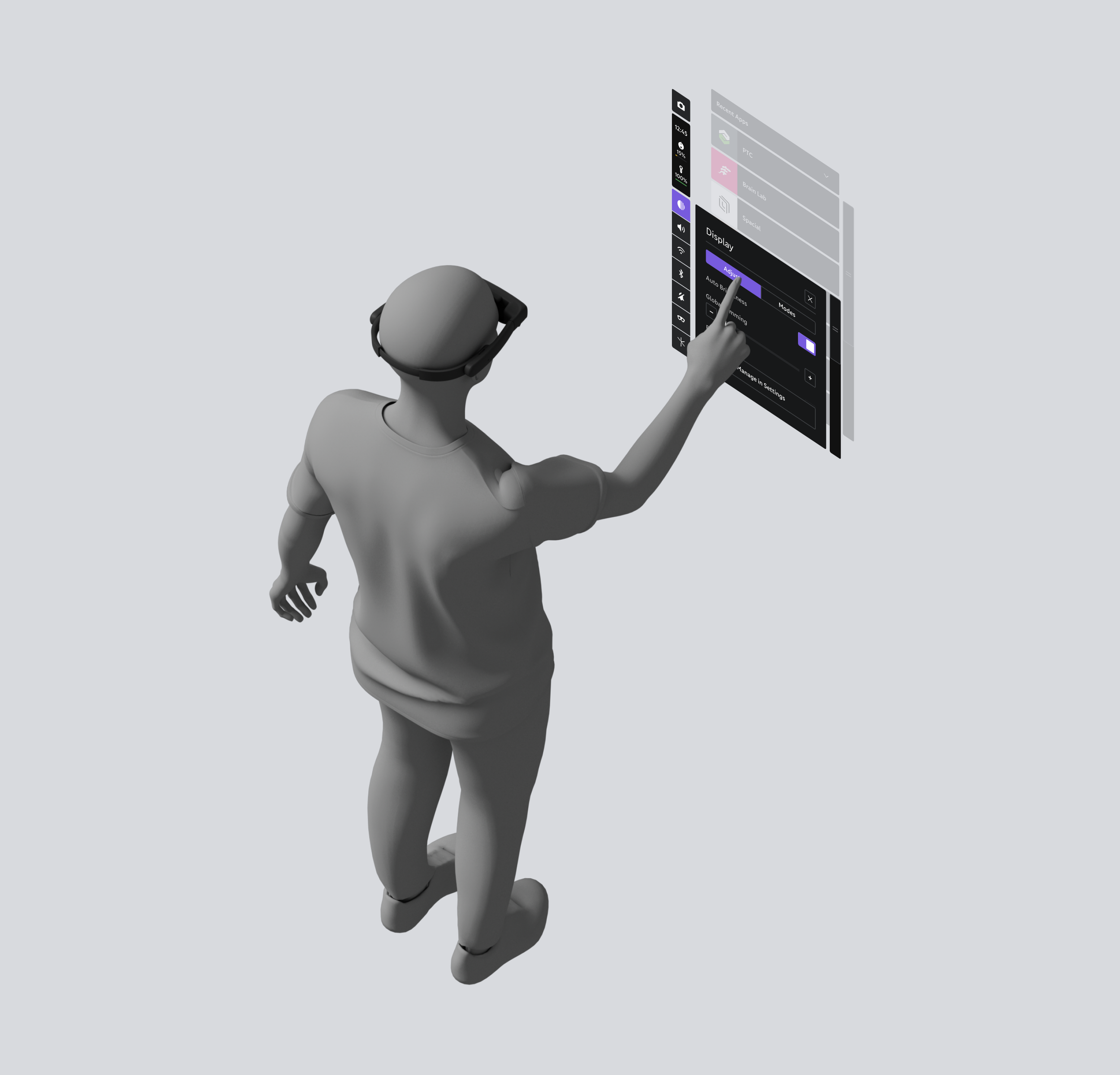
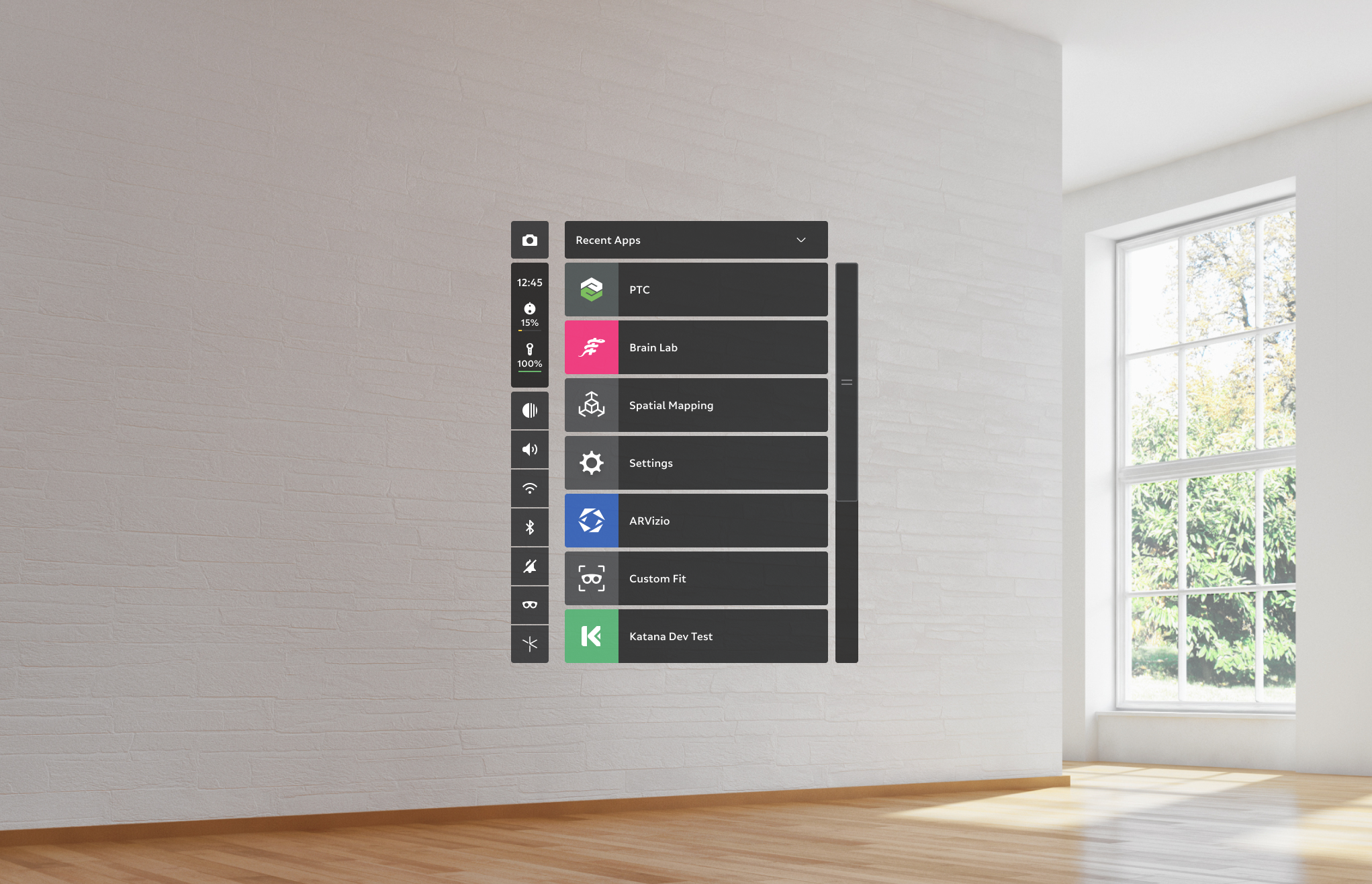
Home Components
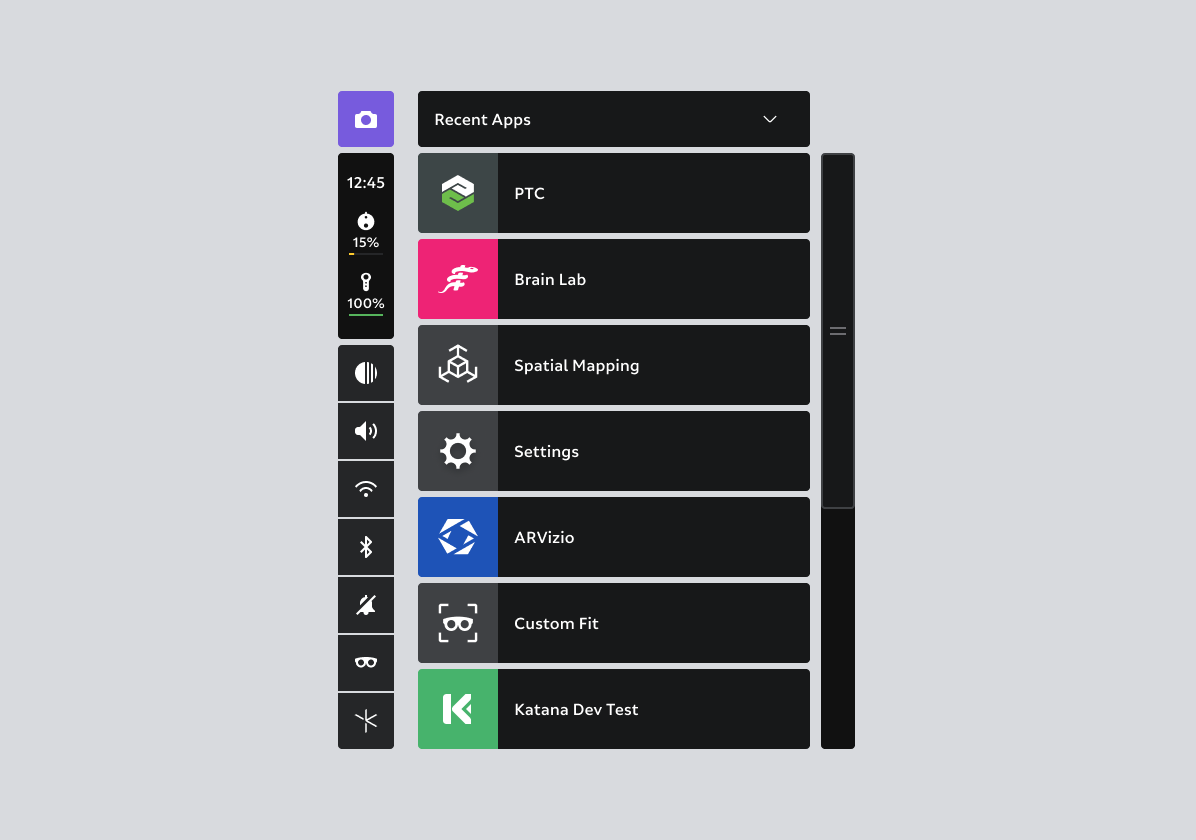
Home consists of four major components:
App list
Capture
Device status
Quick settings
App List
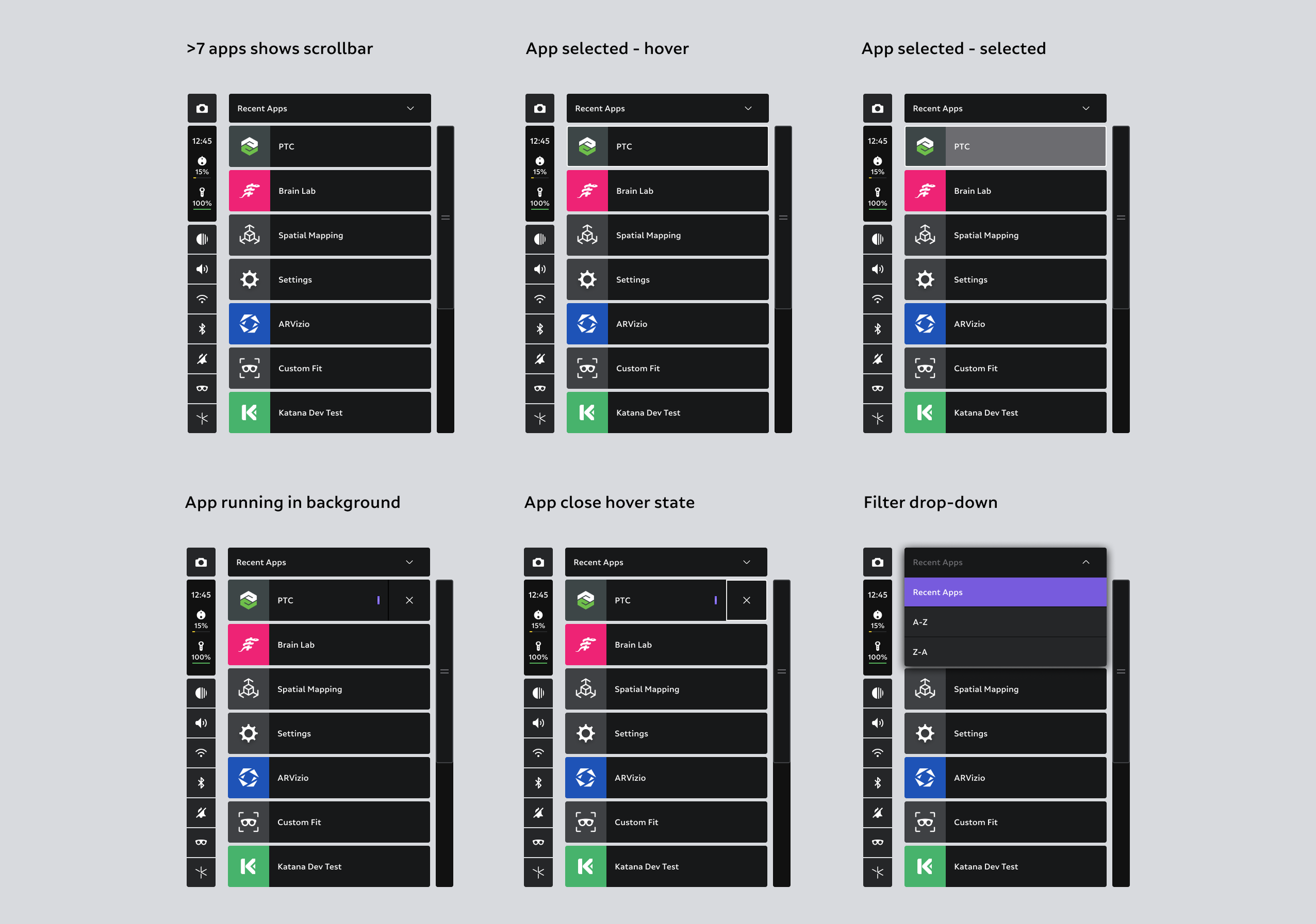
The app list includes a list view of up to seven apps at a time. If >7 apps are available, the scrollbar is shown to show more. Apps can be sorted through a simple drop-down filter list for recents, ascending, and descending.
Capture
For easy discovery, the Capture button starts the Capture service. It can also be accessed through voice commands, gestures, and a Controller chord if capturing within an application.
Device status
Device status is a quick-view component that shows time, compute pack, Controller, and external power bank battery percentages.
Quick settings
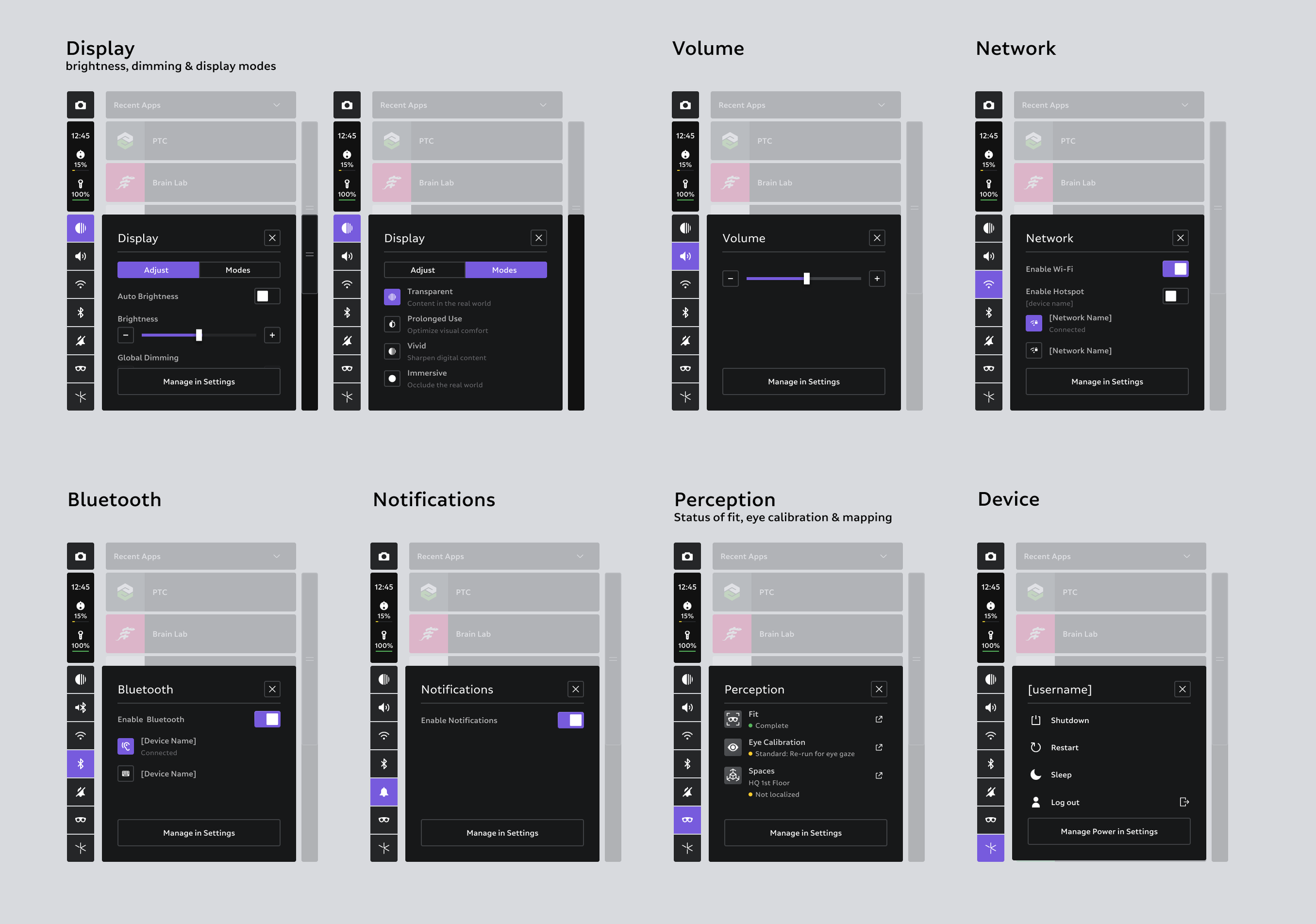
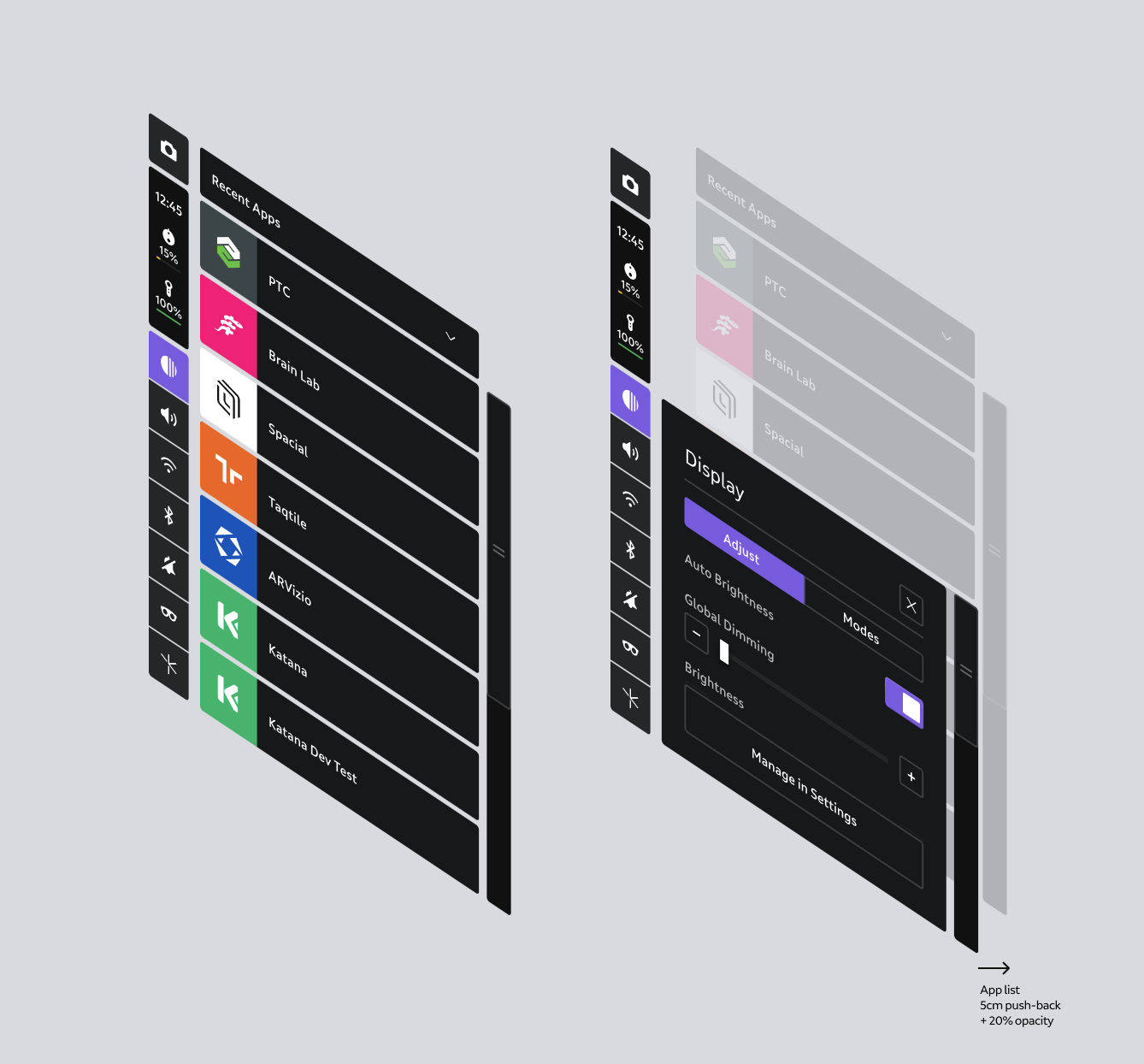
Quick settings are top-level preferences that users can easily access without opening up Settings. The left-side settings buttons show quick-view status such as WiFi on and volume level. Selecting a button pushes the app list back 5cm and a 20% opacity is applied to enhance workflow feedback focus, and opens the quick settings modal.
Behaviors & sub-behaviors
Home utilizes a body-relative behavior with lazy, variable distances, follow, height-adjusted, and billboard sub-behaviors. See Behaviors for more info.
Micro-movement buffers
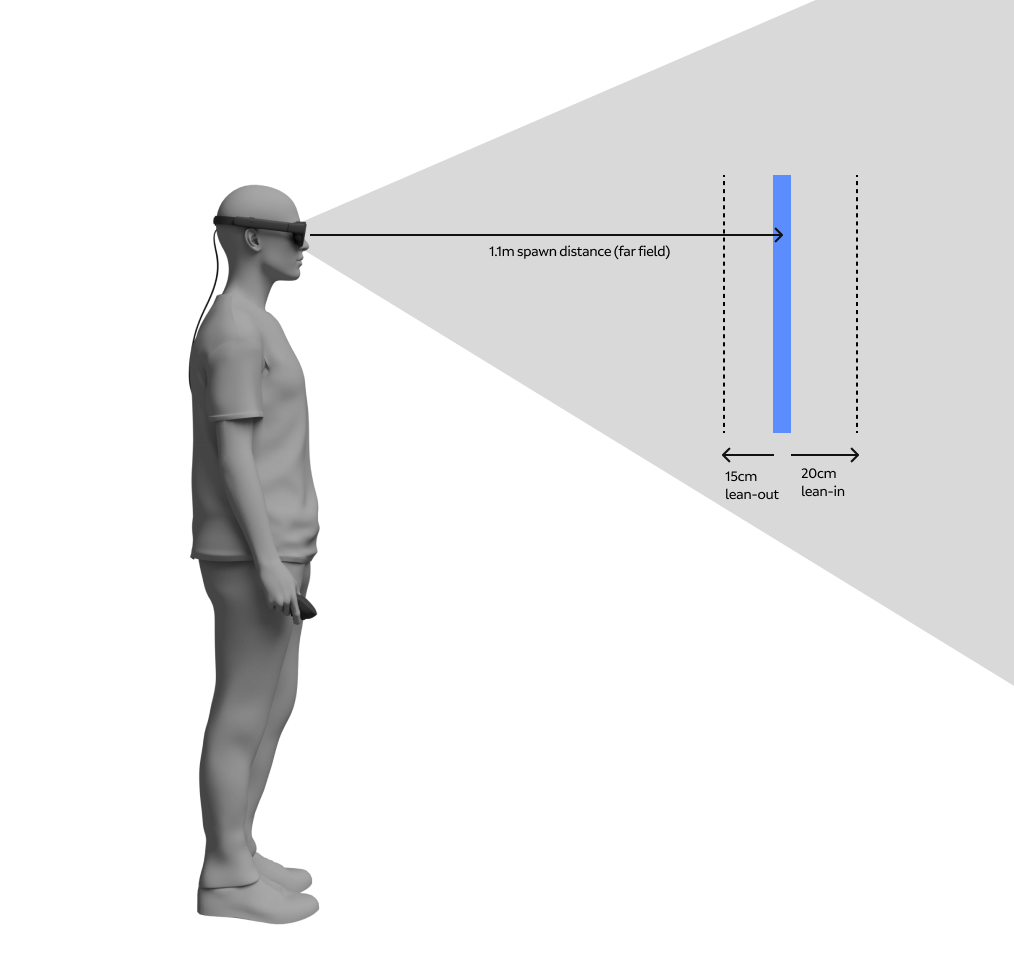
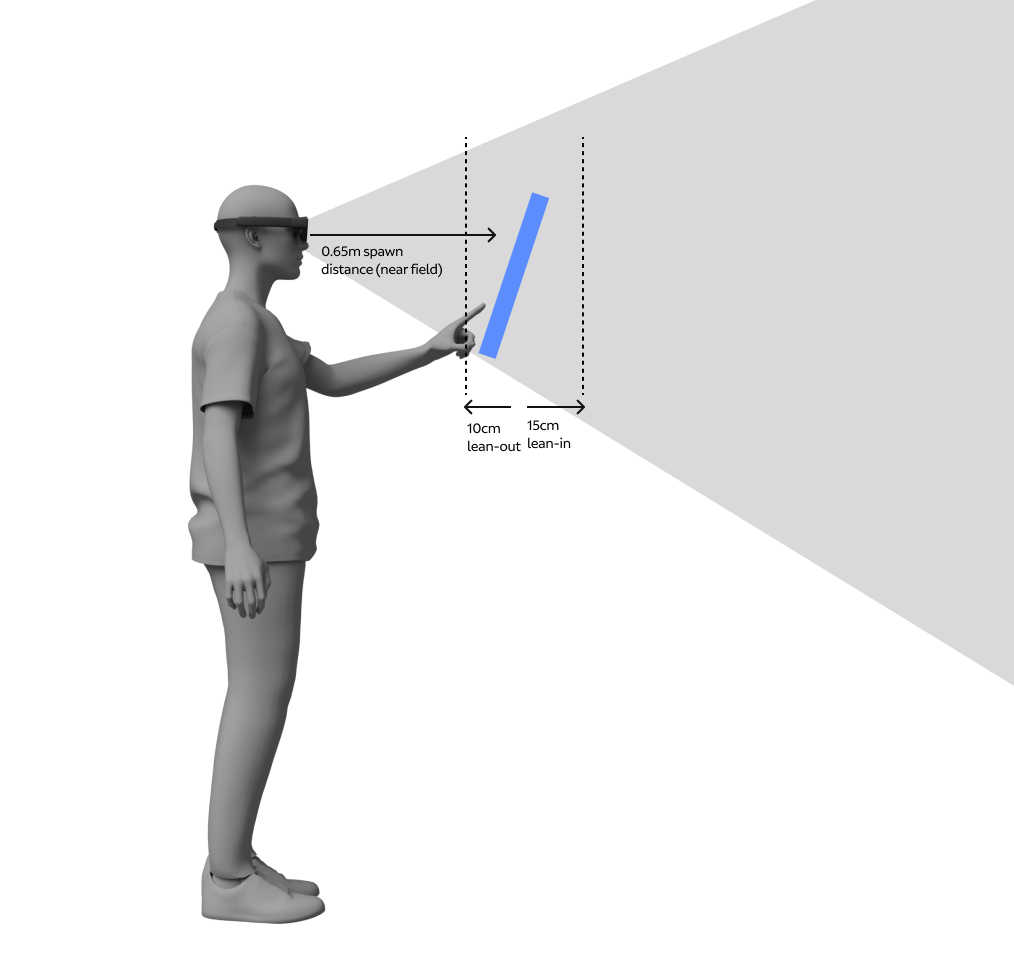
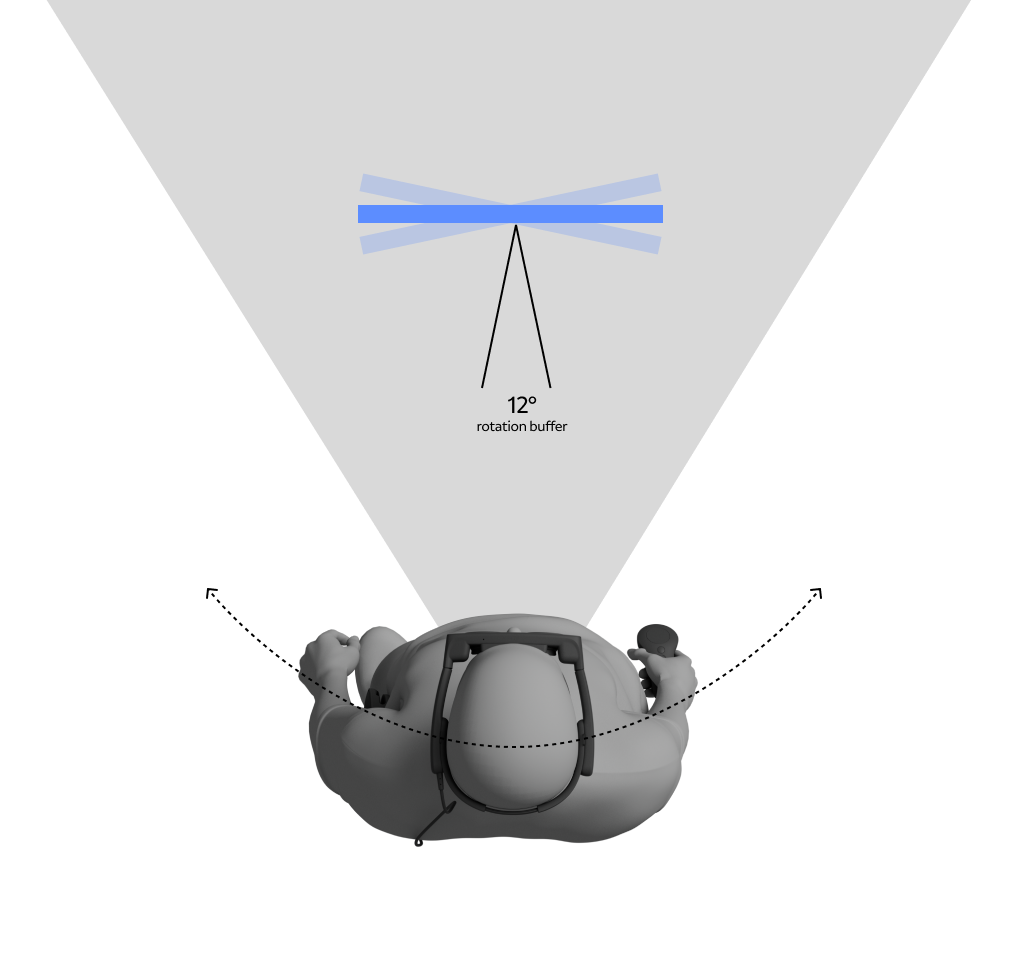
Users are always moving, even when they are trying to stand still. To mitigate for user micro-movements like swaying, lean in or out, fidgeting, and input movement, we designed macro-movement buffers. The depth buffer accounts for a 15 - 20cm lean-in before pushing Home away, and 10 - 15cm lean-out before attracting Home in z-depth. Angle rotation allowed for 12° user rotation around Home before billboarding.
Macro-movements
Users need the ability to stand up, sit down, move across a room, or turn their head while Home is present. Interpreting how Home should react in these instances was tricky since we had to interpret user intent. Height-adjusted buffers were added to accommodate for large-scale user height movement. When users walk in the direction of Home we added friction to Home stays in front of them until a 4°path rotation occurs, at which time Home slides to teh side and then behind the user. For head rotation we kept Home in place without tethering Home to allow for users to look to the side.
Home app states
Home interactions
Home behaviors